To use this function you will first have to create an Audio Stream Control calendar. To do this, go to the calendar page and press new. If you do not have a calendar page in your menu but wish to use this feature please contact our support department.
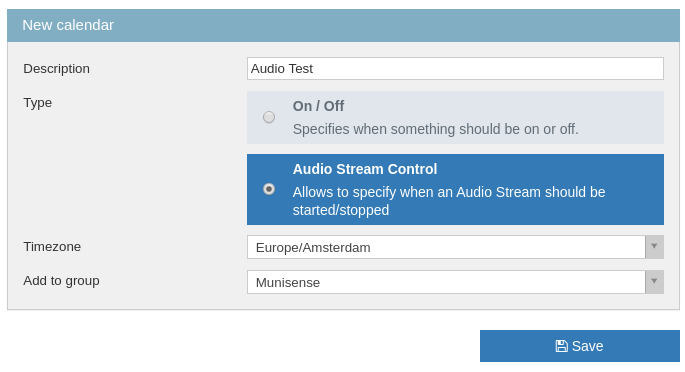
The main calendar covers an entire year but perhaps you might want to have the audio stream behave differently on different days. So once you have created your calendar you will need to create a day configuration. You can create day configurations for every situation you want. But for our demo we will only create one. Here you select the times you want to have your audio stream turned on or off.
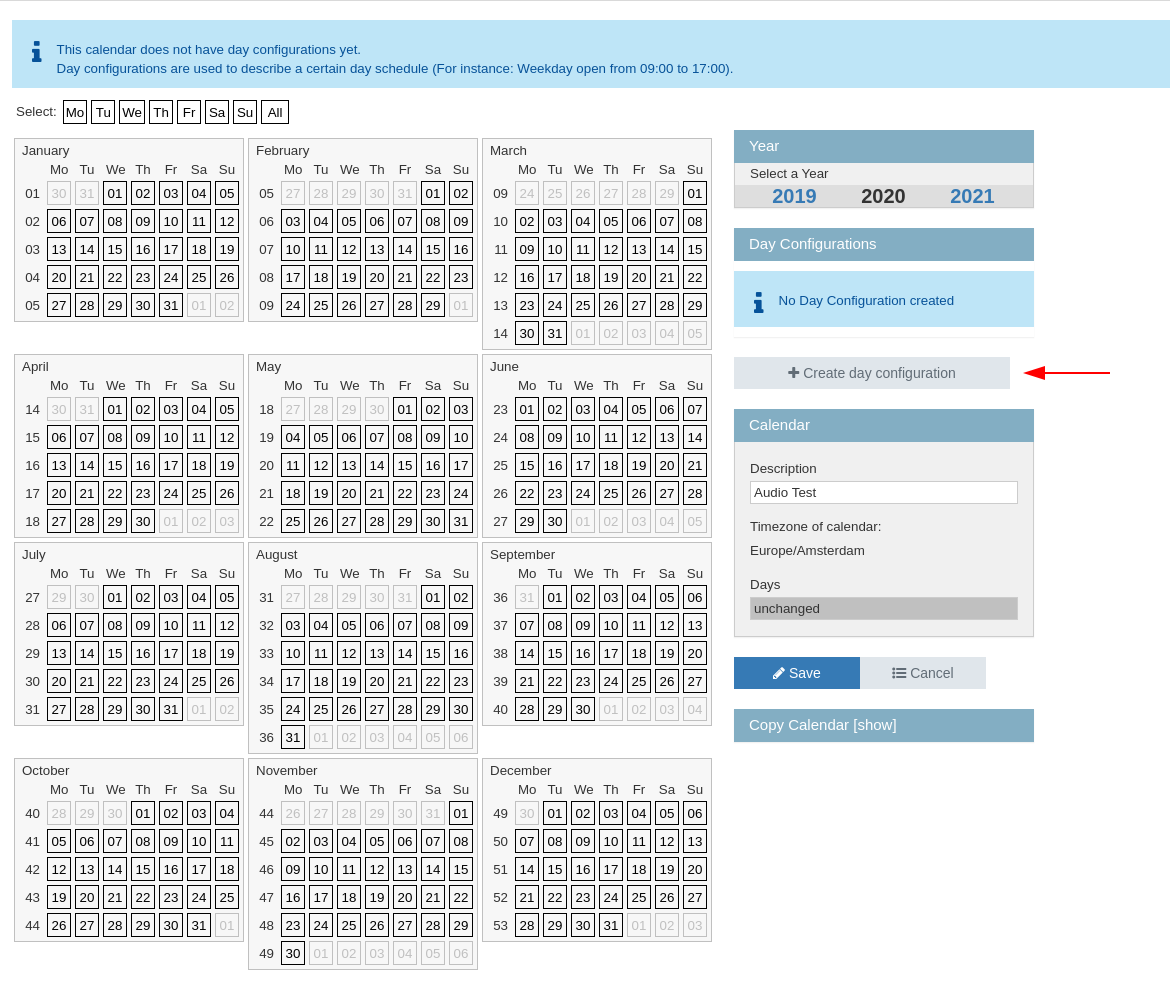
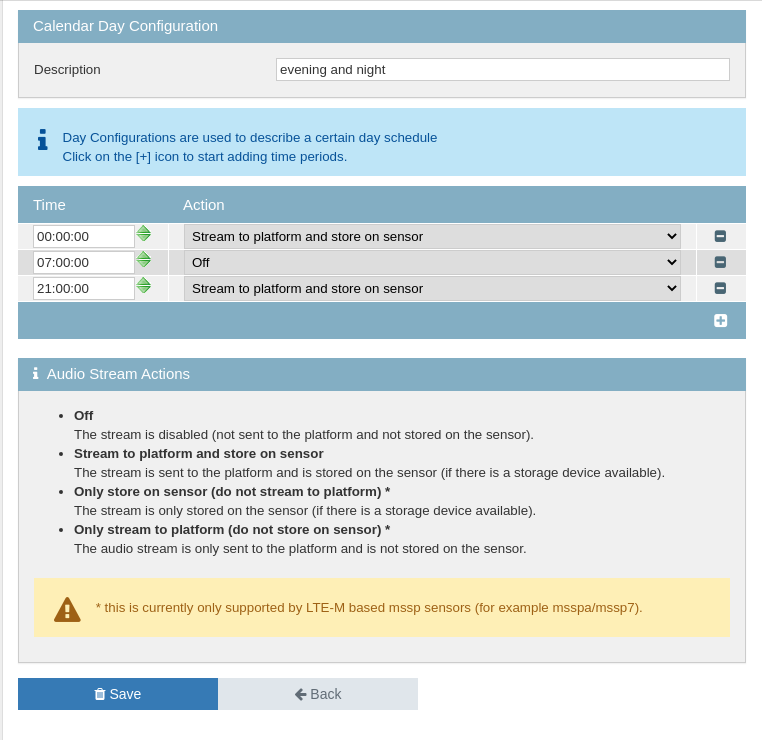
For this example we only want our audio streaming to be on during the evening and the nights. Press "Save" and return to the year calendar.
Here you can select days where you want your day configuration to take effect. For example if you wish to measure a project during march in the weekends you could only select the weekend days and then press the day configuration to set it to that configuration. Do not forget to click the blue "Save" button.
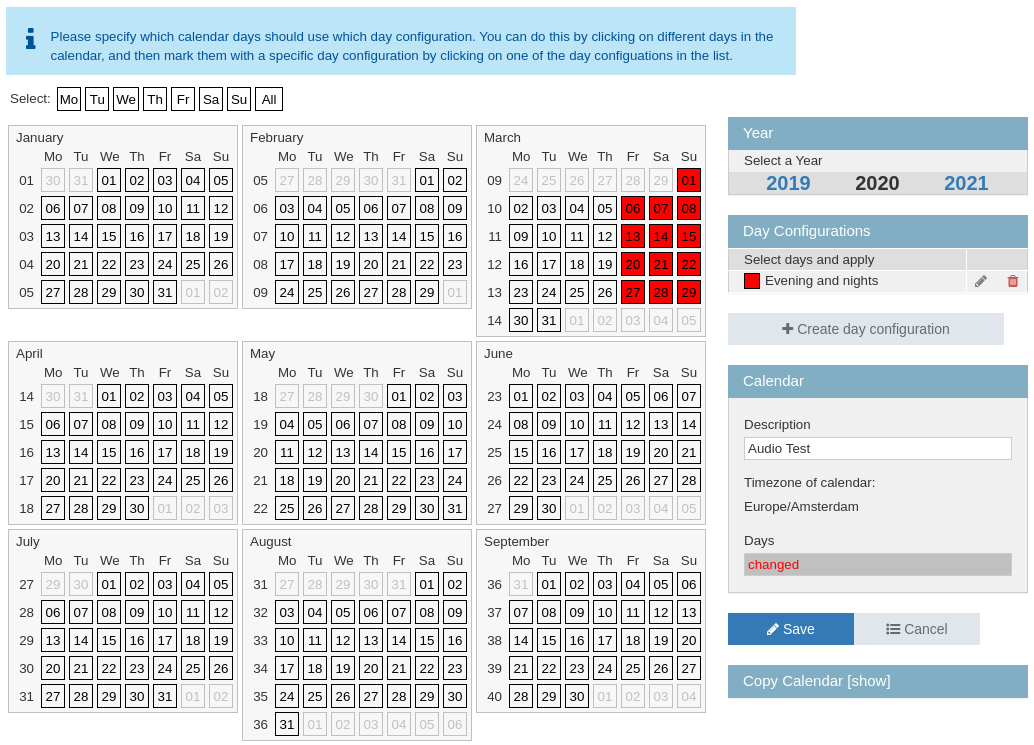
Now the calendar is set. The only thing left is to couple the calendar to the sound measurement point. To do this we go to the sound measurement point that you want to have its audio controlled. Edit the measurement point, go to the audio streaming tab and select the calendar we just made.
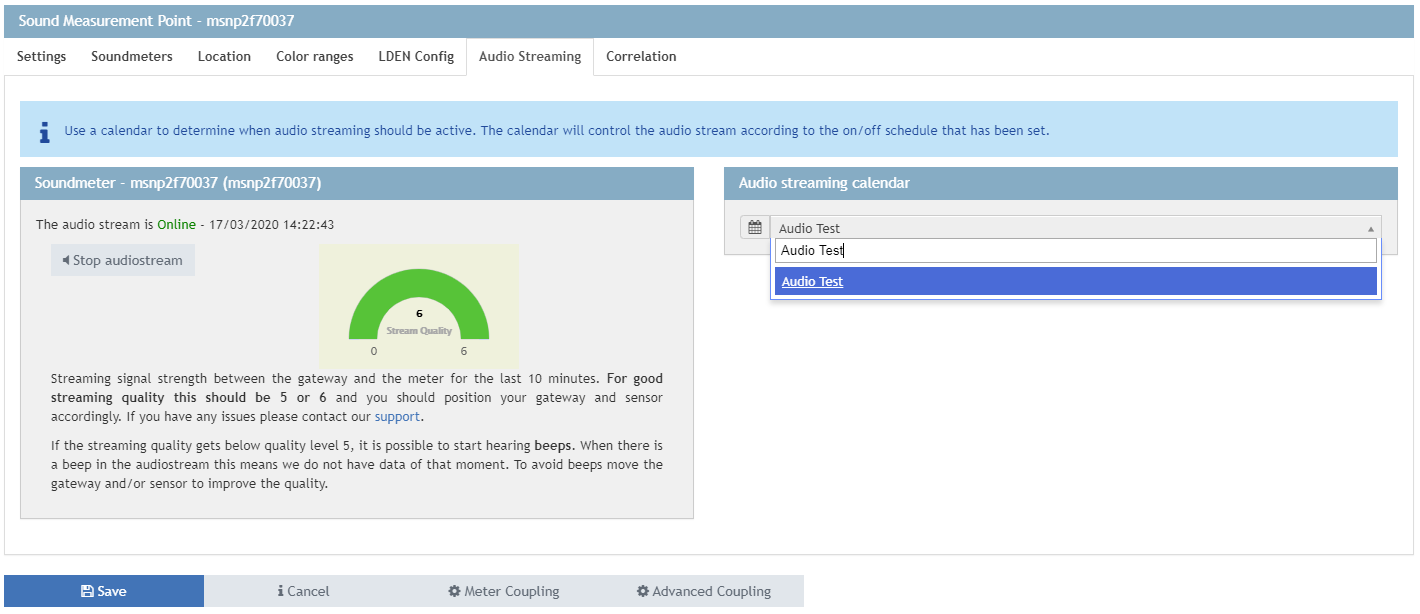
Press the "Save" button again and your are done. In the weekends of March the sound meter coupled to the measurement point will have its audio controlled and will be turned off on the times you have specified. It is important to note that the audio stream will be left on its last state.
Thus in the example we turned it on for the evening, this would mean that the audio stream would be left on till the next day configuration it will encounter. If for the demo sake we would want to stop the audio stream after the weekend we could make a new configuration that would stop the audio stream at a certain time and set this configuration for the Mondays.
Note on spanning multiple days
Music events or measurement projects often go on into the early morning of the next day.
As an example lets define an audio stream calendar that starts streaming audio Friday at 20:00 and stops at 02:00 the next day.
For this to work we will need to configure two separate calendar day configurations.
Friday
Saturday
And remember to assign these calendar days to the correct days in the actual calendar:
This will result in any Sound Measurement Point that has this audio stream calendar controlling its audio stream, streaming between 20:00 and 02:00.
0 Comments