You can invite new users to join your portal.
- Ask for the email address of the person you're inviting.
- In your portal, head over to the Users page.
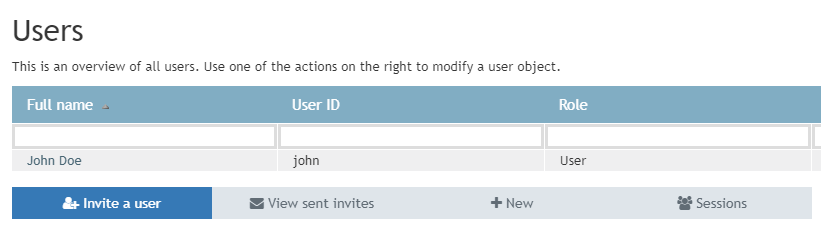
- Click "Invite a user"
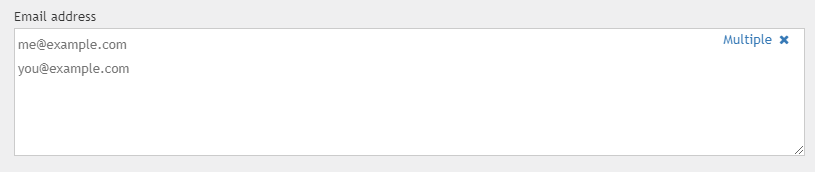
- Enter the email address of the person you would like to invite. Click "Multiple" to enter multiple email addresses.
Select the role that this user will get in the portal.
Select one or more groups this user will become a member of.
Optionally, you can leave the user a personal message.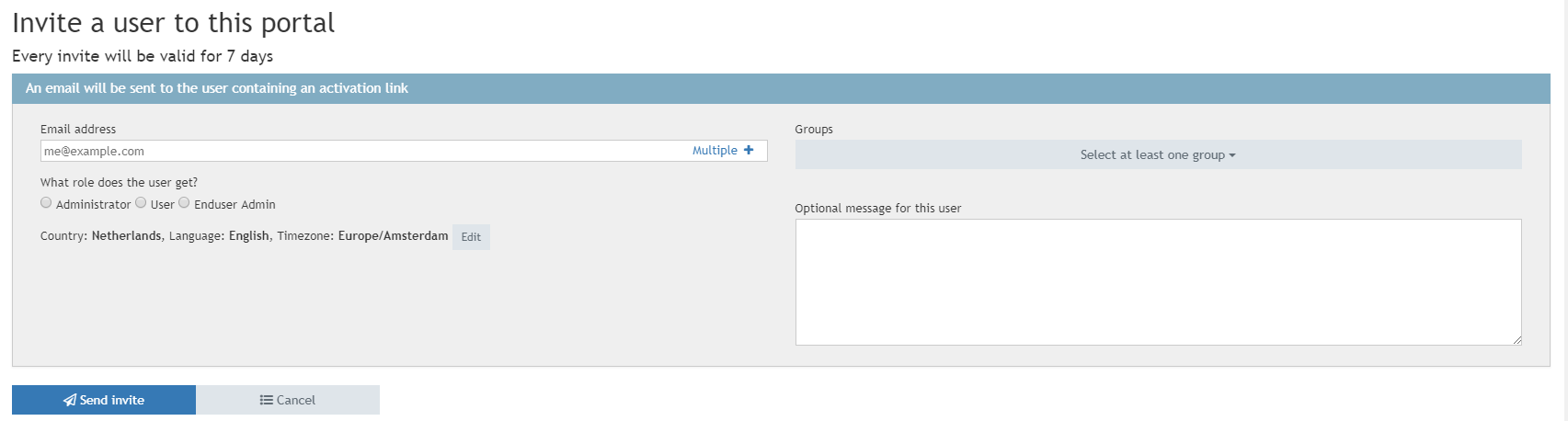
- If you want to, you may change the default country, language and/or timezone that the user will get. The defaults are copied from your settings. The user can still change these settings when creating their account, or if they have already created an account they can change these settings in the Login Portal.
- Click "Send invite".
- The user will receive an email inviting them to the portal. Once they accept your invitation, they will have access to your portal.
Tip
You can invite multiple users at the same time by using the "Multiple" option in the email address field.
What invites have been sent?
- Click on "View sent invites"
- On this page you can see a list of invites you have sent. You can see the current status of each invite. An invite can either be:
- Pending accept (the user can accept the invite)
- Revoked (you have revoked the invite, the invite can no longer be used)
- Expired (the invite has expired, the invite can no longer be used)
- Accepted (the user has accepted the invite, the invite can no longer be used) 
- From here you can revoke an invite. For example if you misspelled an email address.
0 Comments