A Portal Group, or simply Group is an entity that can be used to group (hence the name) different objects such as measurement points, Nodes, Gateways and more that belong together. In addition, Groups can be used to restrict access to their contents. That is because in order to access the contents of a Group, a user must be a member of that Group.
A prime example of a good use case for a Group would be a measurement project. The Group contains all the measurement points and installed Nodes and Gateways that are in use on the project location. The only users that have access to this Group are the project manager, installation support engineer and two supervisors. Because no other users are involved in this project only these four users can access and edit the measurement points and the hardware and view data from their sources.
Creating and Editing Groups
To create new Groups or edit existing ones, find the Group Manager under Groups in the Admin menu. This will take you to a list of all the Groups you have access to.
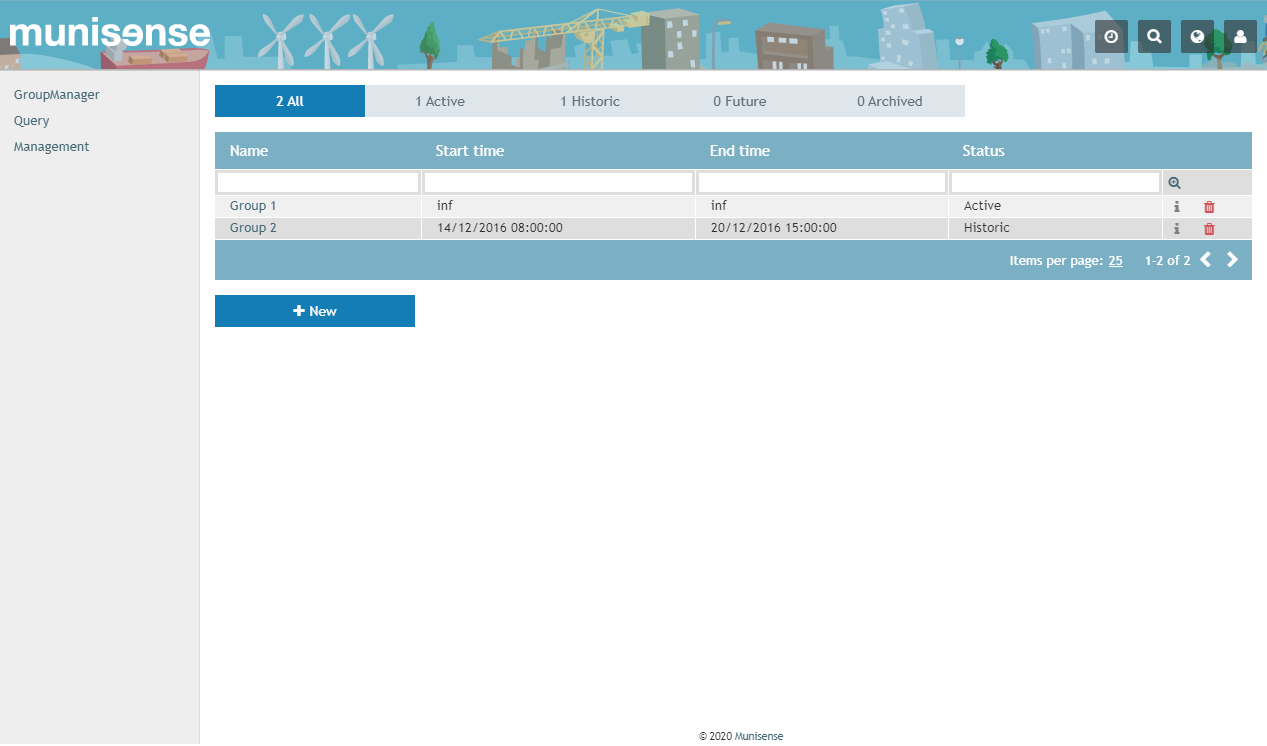
In this example there are two existing groups. Group 1 is a permanent group, the start- and end times are infinite, meaning its contents are available at all times. The start- and end time can be used to limit access to a group and any measurement data of its measurement points and Nodes to a certain period. Group 2 has a start time of 14/12/2016 08:00:00 and an end time of 20/12/2016 15:00:00. This means that members of this Group only have access to the Group within this period. In addition both Groups are not archived. Archiving groups is another way to control access. If their data is needed again at some point in time, they can be reactived.
- Important note: If a Group doesn't show up for some reason while it should be visible, walk through the next few steps:
- First verify that you are a member of the Group. Go to your user settings and make sure you see the Group in the list.
- Make sure the Group is not archived. Find the Group Manager in the Admin menu under Groups and make sure the Group doesn't have the archived checkbox.
- Finally in that same view, make sure the start- and endtime of the Group are not in the past or the future but overlap with the current date.
0 Comments